Add the snippets
Two components cover all pages:TabbyPromo— Product and Cart pages.TabbyCard— Checkout page, the recommended way to present Tabby payment details at checkout (see Tabby on Checkout).
Product and Cart page snippet
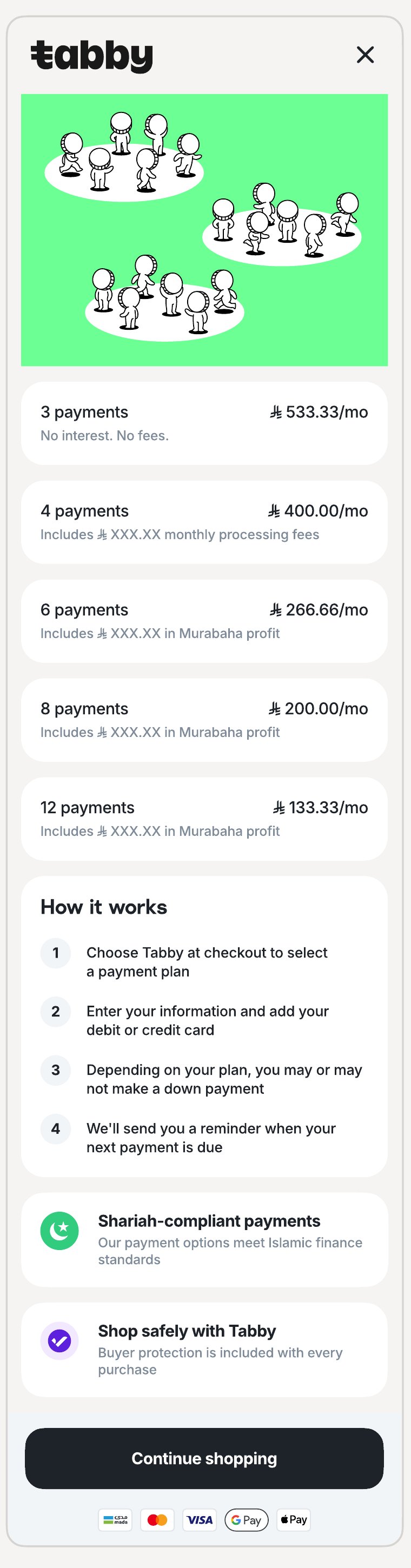
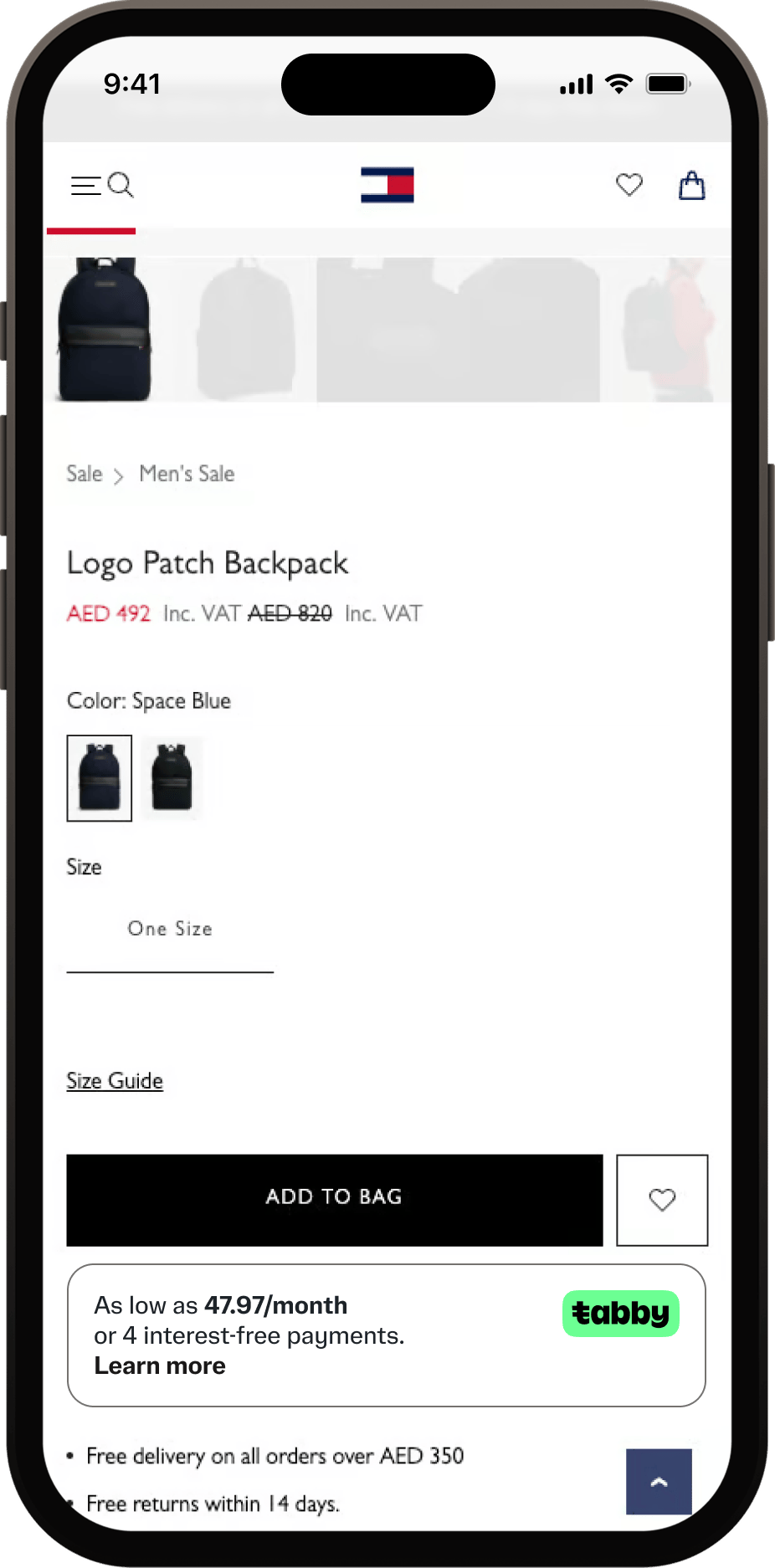
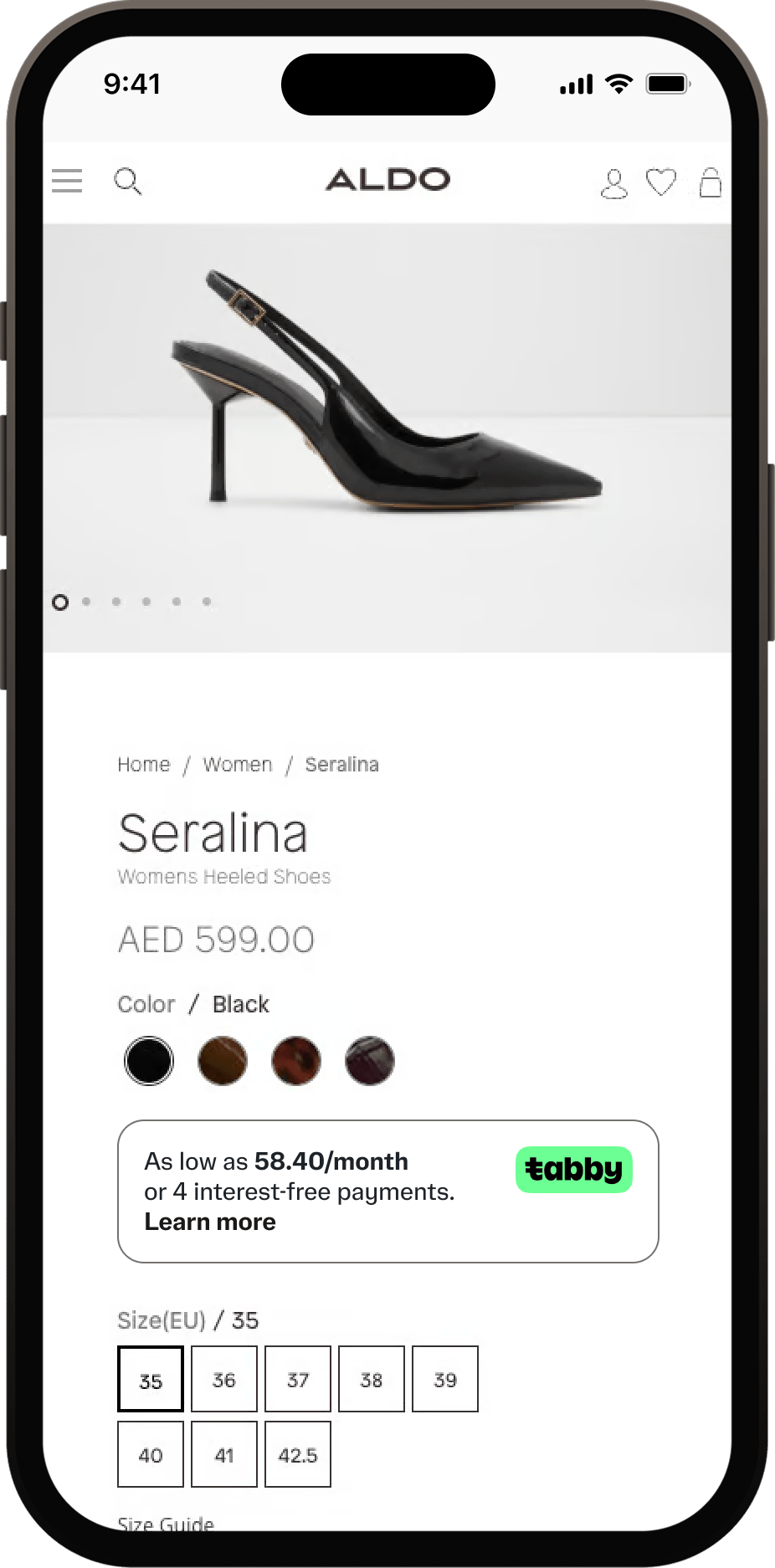
The Product and Cart page snippet uses theTabbyPromo component to display promotional messaging on product and cart pages.
Create an empty <div> element with a unique selector, preferably using an id:
- Product: near the product price or next to the “Add to cart” button;
- Cart: below the total cart amount.
TabbyPromo component after the script loads:
TabbyPromo when the price changes (e.g. variant or quantity selectors).
If the white background of the snippet does not match your website design and you want the snippet to inherit the background color, you can use shouldInheritBg: true. When this parameter is set to true, you can also customize the text and link colors using the following CSS variables:
Complete Product and Cart snippet example
Checkout snippet
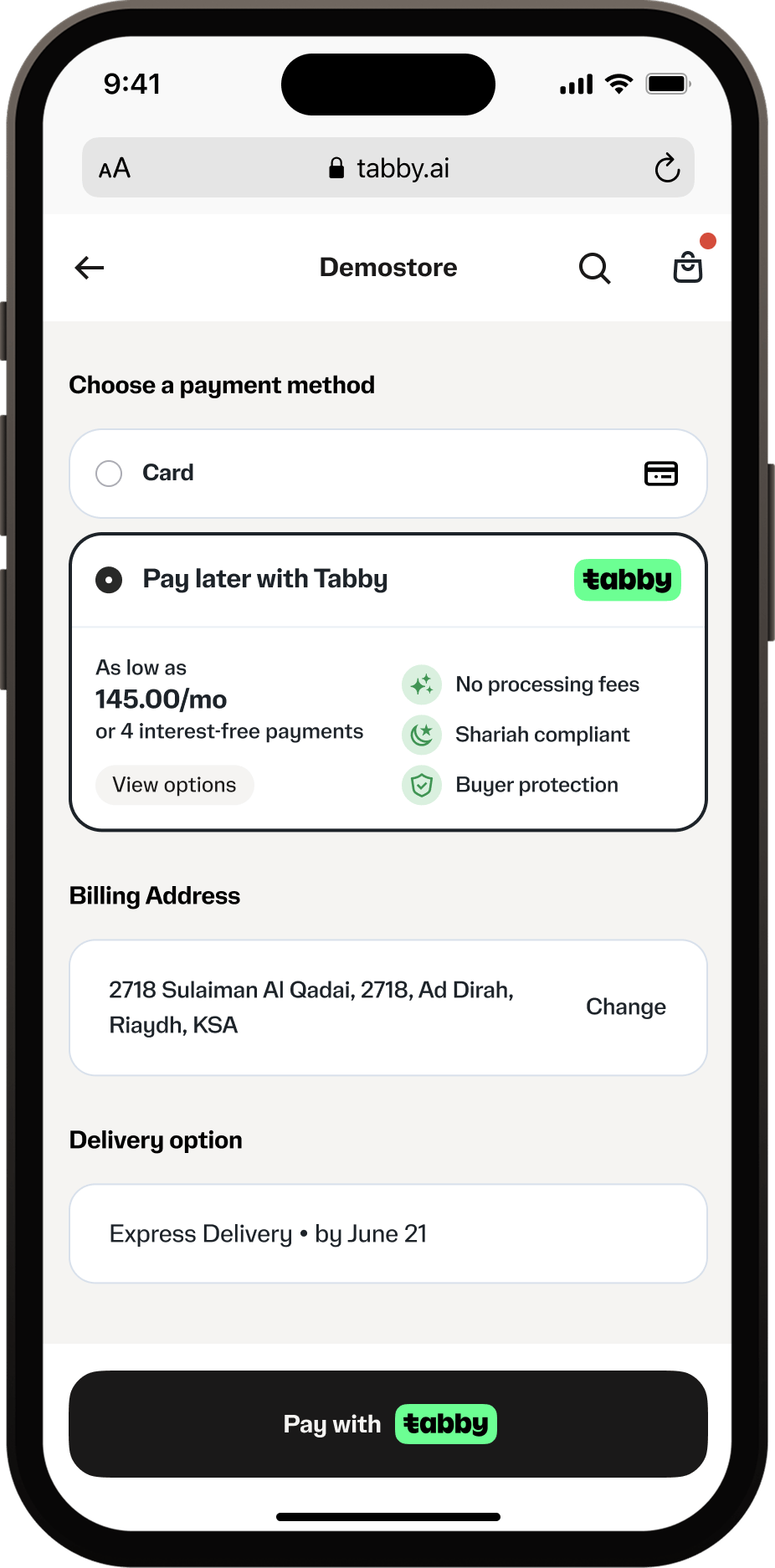
The checkout snippet uses theTabbyCard component to display payment information during checkout.
Create an empty <div> element where the Tabby Card will be displayed:
div under the Tabby payment method option. Display it when the Tabby payment method is selected.
Load and initialize TabbyCard:
Complete Checkout snippet example
Live demo
Everything below is rendered live bytabby-promo.js and tabby-card.js — exactly what your customers will see. Switch the market to preview English/AED and Arabic/SAR, and click “Learn more” to open the real pop-up.
Custom Promo Snippets
If you can’t load Tabby’s JavaScript (security policies, native mobile apps, full styling control), build your own message and open the Tabby “Learn more” pop-up via a direct URL:URL Parameters
If you implement your own custom snippet, notify your Tabby account manager so we can keep your integration in sync with upcoming changes.